
Appearance
Jabra .NET SDK
With the Jabra .NET SDK, you can easily integrate Jabra device functionality into your .NET application.
The SDK supports the following use cases:
- Call control integration for softphones
- Getting detailed device information
- Changing camera, headset and speakerphone settings
- Getting audio, video and wireless telemetry data
Supported runtimes
- .NET Framework 4.7.1 or later
- .NET Core
- .NET 5 or later
Supported Operating Systems
- Windows 10 and Windows 11 (x64, arm64)
- macOS 14 and newer (x64, arm64)
- Ubuntu Linux 22.04 (LTS) and newer
SDK modules
Jabra .NET SDK is available through nuget.org. The SDK consists of multiple modules.
The core Jabra.NET.Sdk module is mandatory for all SDK integrations and contains everything you need for:
- Device detection
- Call control integration into softphones
- Basic device information such as name of device, serial number, product ID
Optional NuGet packages
Install optional modules only if you need the specific functionality they provide:
Jabra.NET.Sdk.Properties- Enables you to get and set device settings and get telemetry information from devices. Learn more in the Properties documentation.Jabra.NET.Sdk.DevicePairing- Enables you to pair/unpair and connect/disconnect wireless headsets (BT or DECT) with Jabra wireless dongles. Learn more in the Device Pairing documentation.Jabra.NET.Sdk.ButtonCustomization- Enables you to customize buttons and LEDs on supported headsets. Learn more by inspecting the API reference for the Button Customization module.
.NET Framework - Copy files to output folder
If your application is using .NET Framework, you need to configure your project to copy all the files from the Jabra.Utilities/DeviceConnector/win32 to the output directory when you build your project. Mark all the files in the folder in Visual Studio and select either Copy always or Copy if newer in the Properties window. 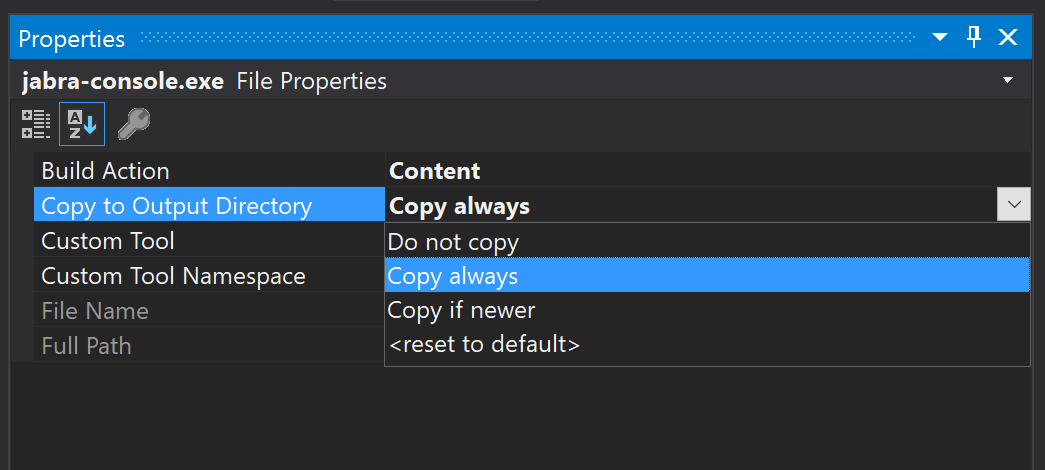 Note: If your application is using .NET Core or .NET 5 (or later) you don't need to manually configure copying to Output Directory.
Getting Started
The simplest way to get started is to try out our code samples.
Install the SDK
To install the core SDK module, by running the following command in your project folder:
sh
dotnet add package Jabra.NET.SdkInitializing the SDK
To use any of the functionality of the SDK, you first need to initialize it. The recommended way to do this is via the Jabra.NET.Sdk.Core.Init.InitManualSdk static function. Using this, you can set up subscriptions to error handling and device discovery before finalizing initialization:
C#
using Jabra.NET.Sdk.Core;

internal class Program
{
    public static async Task Main()
    {
        var config = new Config(
            partnerKey: "[Your Partner Key]", // We recommend initializing with a proper Partner Key.
            appId: "my-app-id", // may contain a combination of letters (A-Z, a-z), numbers (123), underscores (_), and hyphens (-)
            appName: "My app name" // end-user friendly name for your application
        );
        // Begin init - not complete until jabraSdk.Start();
        IManualApi jabraSdk = Init.InitManualSdk(config);
        // (...) setup error handling and device added/removed events (see below)
        await jabraSdk.Start();
    }
}
Get your Partner Key by contacting us through the support form.
Error handling
To receive logging messages from the SDK in your application, the IApi interface exposes an observable LogEvents which you can subscribe to, as illustrated in the following:
C#
// Subscribe to SDK log events.
jabraSdk.LogEvents.Subscribe((log) =>
{
    // Ignore info, warning, and debug log messages.
    if (log.Level == LogLevel.Error) Console.WriteLine(log.ToString());
});
Device added/removed
You can choose to subscribe to DeviceAdded/DeviceRemoved events or to subscribe to changes to the entire Jabra DeviceList.
C#
// Subscribe to Jabra devices being attached/detected by the SDK
jabraSdk.DeviceAdded.Subscribe(static async (IDevice device) =>
{
    Console.WriteLine($"Device attached/detected: {device.Name} (Product ID: {device.ProductId}, Serial #: {device.SerialNumber})");
    // (...) Your code working with the device here. Example: Set up Easy Call Control for the device, if you're building a softphone integration.
});

// Subscribe to Jabra devices being detached
jabraSdk.DeviceRemoved.Subscribe((IDevice device) =>
{
    Console.WriteLine($"Device detached: {device.Name} (Product ID: {device.ProductId}, Serial #: {device.SerialNumber})");
    // (...) Your code handling that the device was removed. Example: If you were using the device for call control, you might want to setup another device for call control.
});

// Subscribe to changes in the entire list of Jabra devices
jabraSdk.DeviceList.Subscribe((List<IDevice> devices) =>
{
    Console.WriteLine("List of attached devices:");
    foreach (IDevice device in devices)
    {
        Console.WriteLine($"{device.Name} (Product ID: {device.ProductId}, Serial #: {device.SerialNumber})");
        // (...) Your code depending on whether this was the device you were looking for. Example: If device matches the audio device selected in a softphone, set up Easy Call Control for device.
    }
});
Device connections
When an end-user connects a headset to their computer, some cases can lead to multiple connections.
Example: For a BT headset you can simultaneously connect the headset using a wireless dongle connection for calls, in addition to a wired USB cable connection. A new wired connection does not report the headset as an additional device, but merely as an additional connection for the same device.
For a device, you can subscribe to ConnectionAdded/ConnectionRemoved events or subscribe to changes to the entire ConnectionList. You can also get a list of CurrentConnections.
C#
// Connection added event
device.ConnectionAdded.Subscribe(async (IConnection connection) =>
{
    Console.WriteLine($"Connection type {connection.Type} added for: {device.Name}");
});

// Connection removed event
device.ConnectionRemoved.Subscribe(async (IConnection connection) =>
{
    Console.WriteLine($"Connection type {connection.Type} removed for: {device.Name}");
});

// Connection list changed event
device.ConnectionList.Subscribe(async (IEnumerable<IConnection> connections) =>
{
    Console.WriteLine($"Connections for device: {device.Name}");
    foreach (var connection in connections)
    {
        Console.WriteLine($"Connection type: {connection.Type}");
    }
});